
Submitting an hourly leave request works the same way as any other leave request. The key is to set the date range and times correctly – the system will automatically calculate the total number of hours to deduct from your allowance.
Step 1 – Select the Leave Type
From the drop-down list, choose the appropriate hourly leave type.
Step 2 – Set the Leave Period
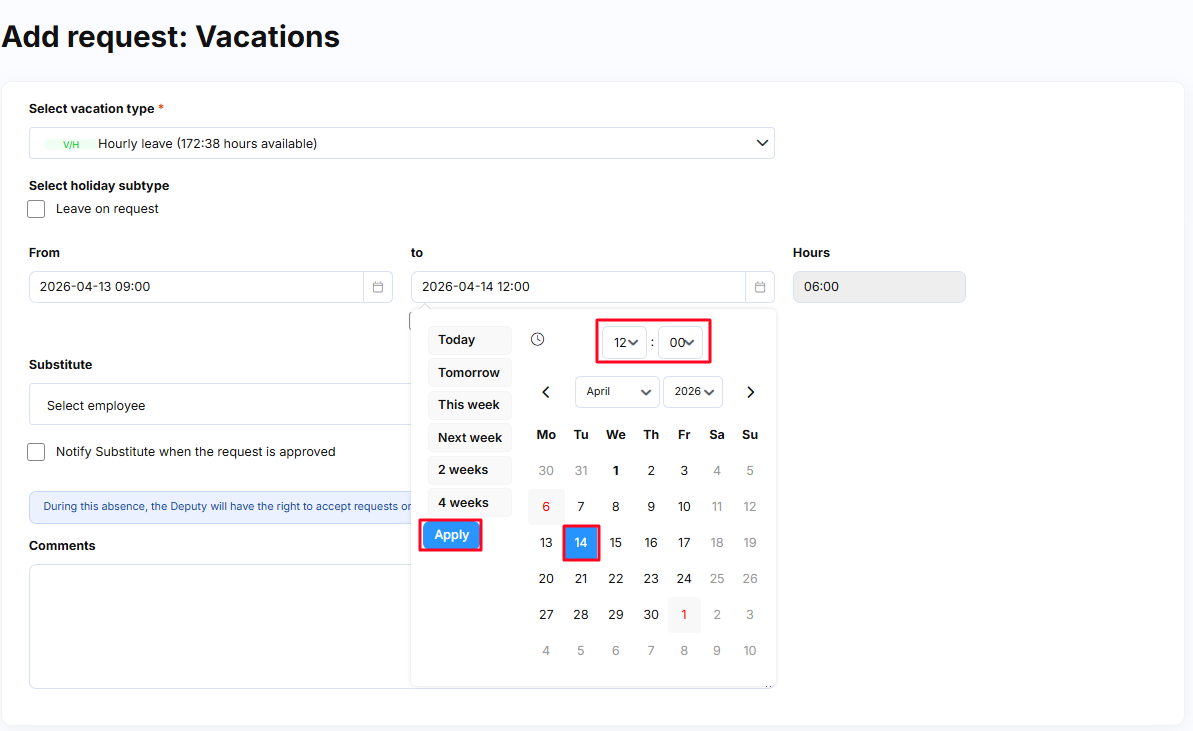
In the From and To fields, select the first and last day of your absence from the calendar, then specify the hours – i.e. the start and end time for each day you will be absent. Once you have set the date and time, click Apply to confirm your selection. The Hours field will fill in automatically – the system calculates the total number of hours by multiplying the number of working days by the specified time range.
Example: A request from Monday to Tuesday, between 09:00 and 12:00 = 6 hours (2 days × 3 hours).
Step 3 – Complete the Remaining Fields (Optional)
You may select a colleague to cover for you during your absence and add a note if needed.
Step 4 – Submit the Request
Once you are ready, click the confirmation button to submit the request to the designated approver.
If you are not ready to submit just yet, you can save the request as planned and come back to it later – edit it if needed and submit it for approval when you are ready.