
In tomHRM, time entries can require approval from designated personnel to ensure all reported activities are accurate and complete.
When to submit entries for approval
If your organisation requires time entry approval, you can notify your manager when your entries are ready for review.
Best practice: Submit entries at the beginning of each month after completing your previous month’s time tracking.
Who receives approval notifications
The system automatically sends notifications to your designated approvers. This may include:
- Your direct manager
- Department manager
- Project manager
- Team manager
Note: You don’t need to manually select recipients – the system handles this based on your permissions settings.
How to submit entries for approval
Step 1: Ensure all time entries for the period are complete
Step 2: Navigate to Time Tracking > My Timesheet
Step 3: Click the “Submit for Approval” button above the entries table
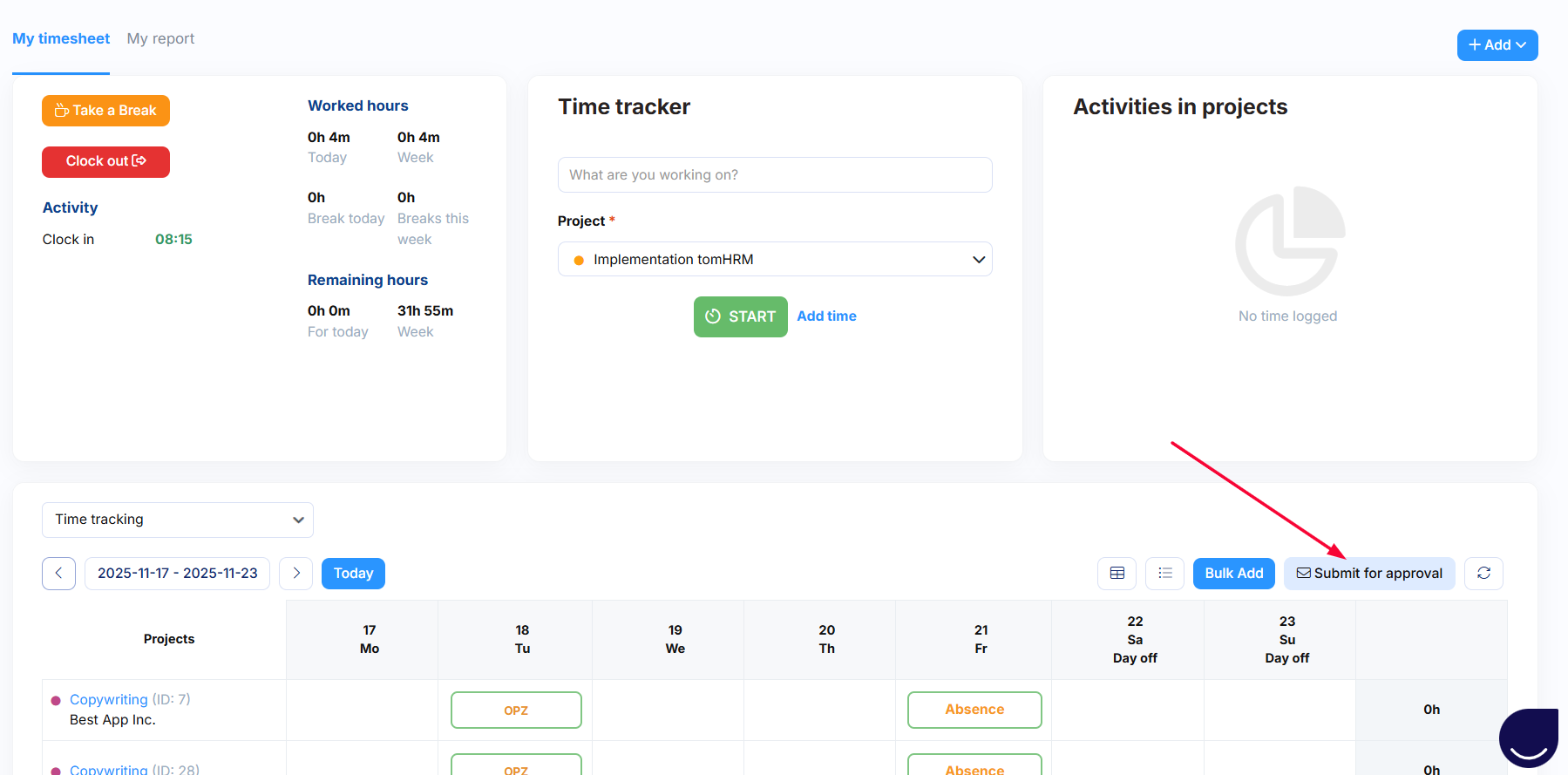
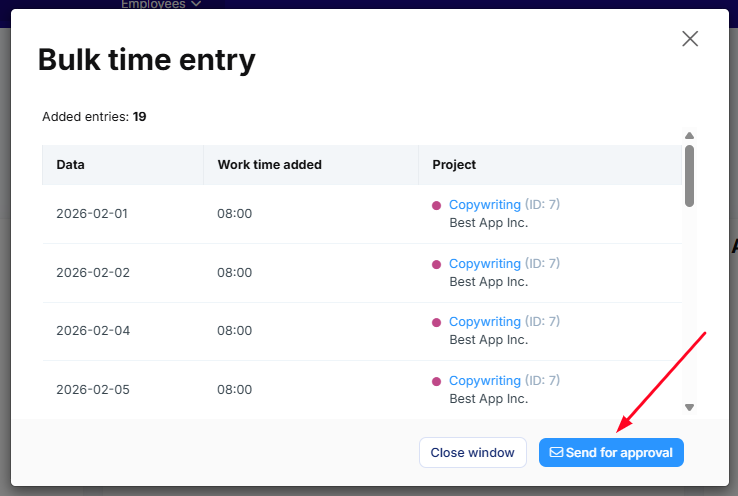
The button is also available in the summary window of the Add in bulk action. This allows you to use the mass adding of entries feature for the entire month from the bottom, and after clicking on the Save option, see the summary and send it to the approver.
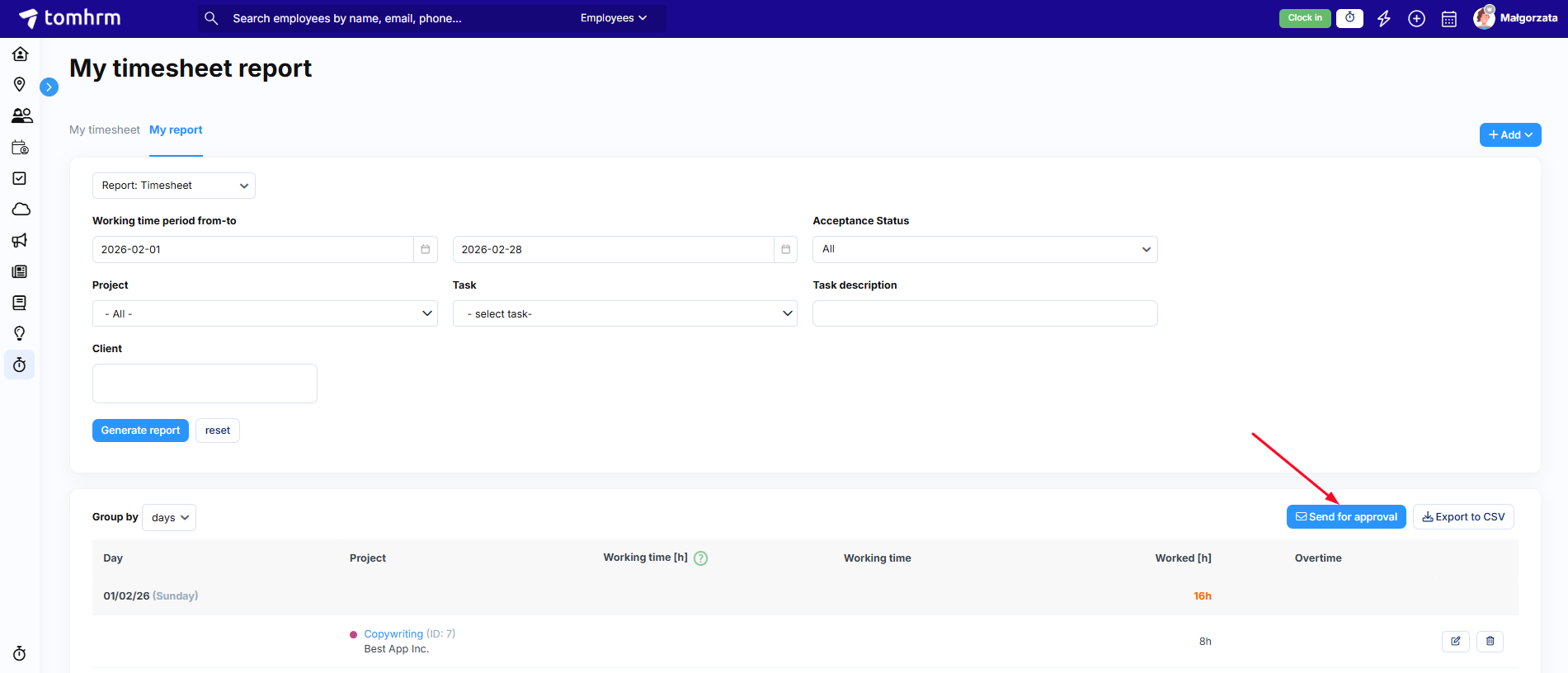
You can also submit for approval in the My Report tab. A dedicated button will appear after generating the report.
What approvers receive
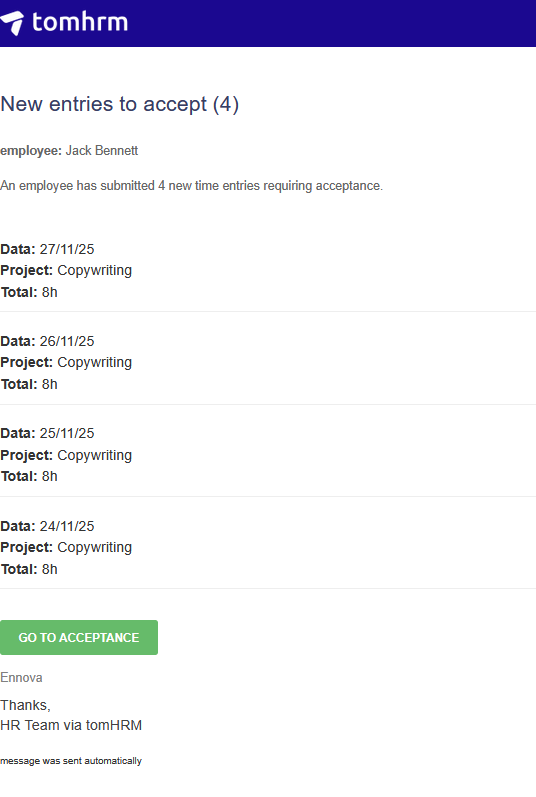
Your designated approvers will receive an email containing:
- Your personal details
- Summary of entries awaiting approval
- List of specific entries with dates and projects
- Direct link to the “Pending Approval” section where they can review your submissions
After submission
Once submitted, your entries will:
- Change status to “pending approval”
- Appear in the approver’s “Pending Approval” tab
- Be available for approval, editing, deletion, or correction requests
Important: Each use of the submit function sends one notification to each authorised approver, regardless of the number of entries.
Key limitations
Cannot cancel: Once submitted, you cannot recall the approval notification.
Next steps: If entries are returned for correction, see our guide on correcting time entries.